
Mass Update lets you synchronise a large number of Account records with fresh data from Proff — all in one operation. Instead of syncing accounts one by one, you define a filter, preview the results, and let the system do the work.
⚠️ Mass Update uses one Proff API call per Account. A job of 1,000 Accounts will use 1,000 API calls. Make sure your organisation has sufficient API quota available before running large jobs.
ℹ️ For large syncs, we recommend scheduling the job outside of business hours to avoid any impact on your users.
⚡ How it works
Mass Update works in three stages:
|
Stage |
What happens |
|---|---|
|
1 FILTER |
You build a filter to select which Accounts to sync — by country, type, owner, or any other Account field. Preview the results before committing. |
|
2 SYNC |
The system makes one Proff API call per Account and updates all mapped fields (name, address, employees, revenue, etc.) plus the Last Synced timestamp. |
|
3 INSIGHT |
After each Account is synced, Company Insight is updated in the background — following your Insight Storage settings (Always Store or Store on Demand). |
📷 The interface
Open the Proff Connect app in Salesforce and go to the Job Center tab. You will find two tabs inside:
-
Monitor Jobs — view and track all ongoing and historical jobs
-
Create Job — build your filter and start a new job
🚀 Running a Mass Update
STEP 1 Build your filter
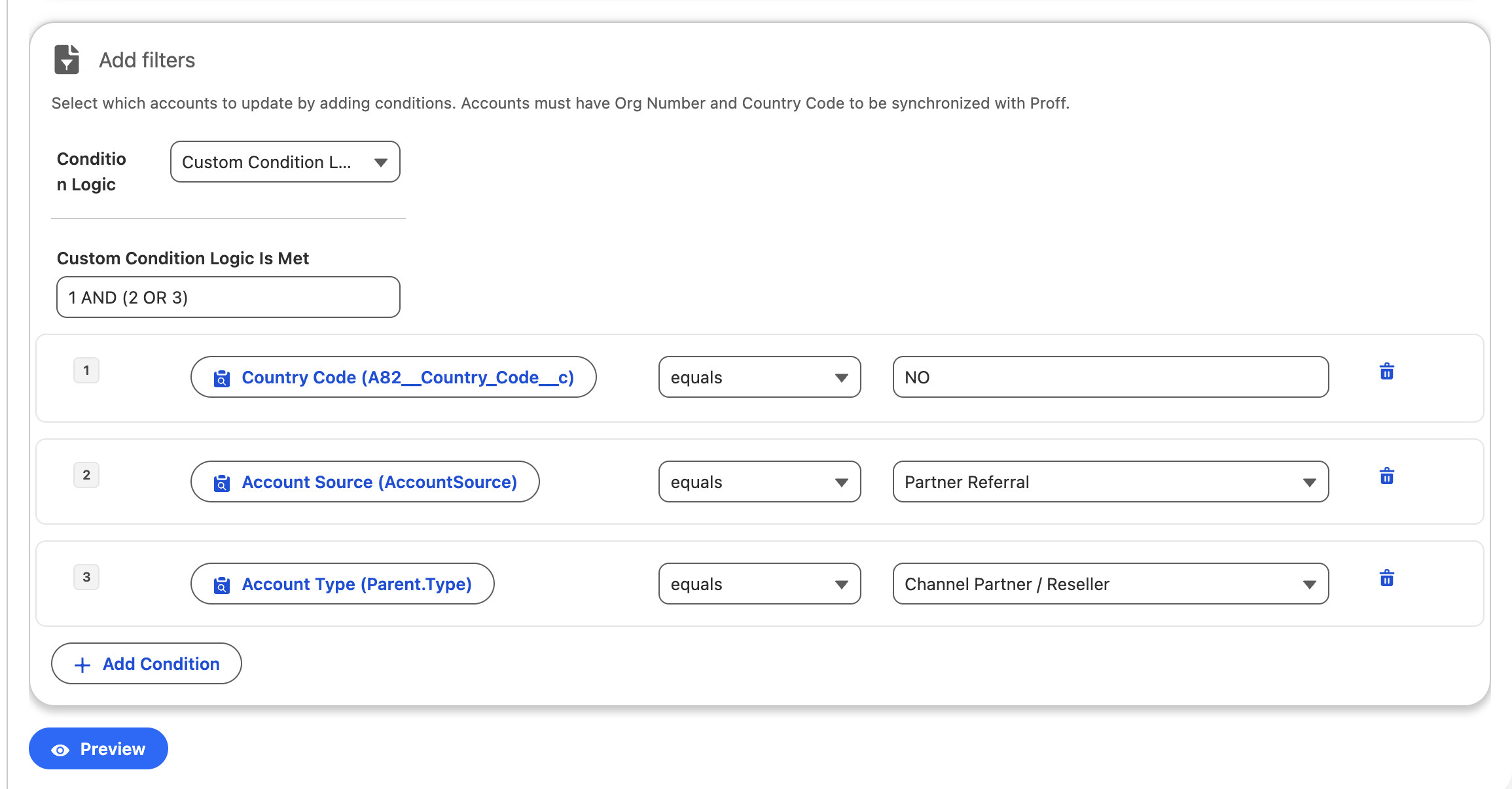
Click Create Job and add one or more conditions to define which Accounts to sync. You can filter on any Account field — such as country, type, owner, industry, or number of employees — and combine conditions with AND, OR, or custom logic.
STEP 2 Preview the results
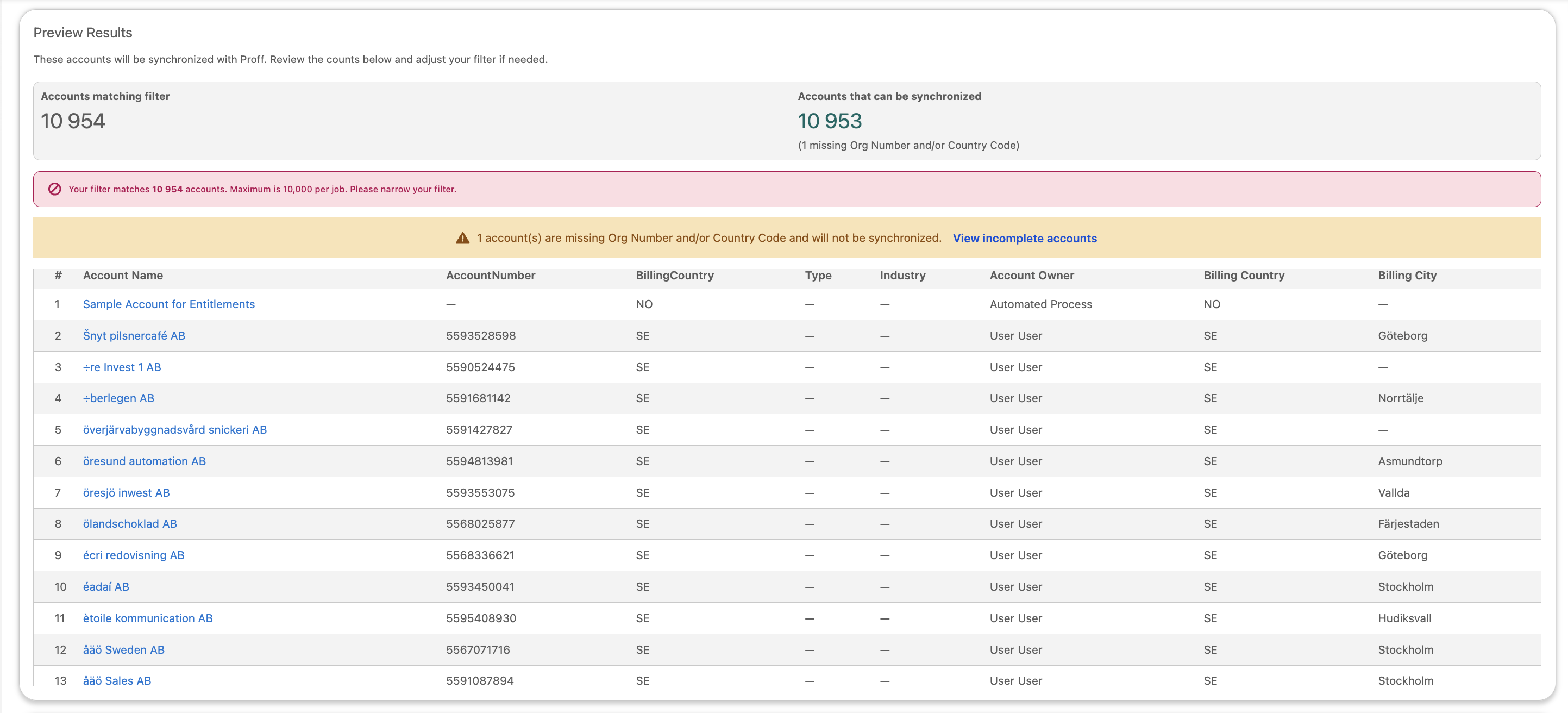
Click Preview to see exactly which Accounts will be synced. You must run a preview before you can create the job.
The preview shows the total number of matching Accounts, flags any that are incomplete (missing Organisation Number or Country Code), and gives you a sample of the first 50 results.
⚠️ The total count in the preview equals the number of API calls the job will use. Make sure you have enough Proff API quota available before proceeding. If the filter matches more than 10,000 Accounts, the job will be blocked — refine your filter to reduce scope.
STEP 3 Schedule or start
You can start the job immediately or schedule it for a specific time using the Run at field.
💡 For large syncs, schedule the job outside of business hours — for example overnight or during the weekend. This avoids any performance impact for your users and ensures the job has full system resources available.
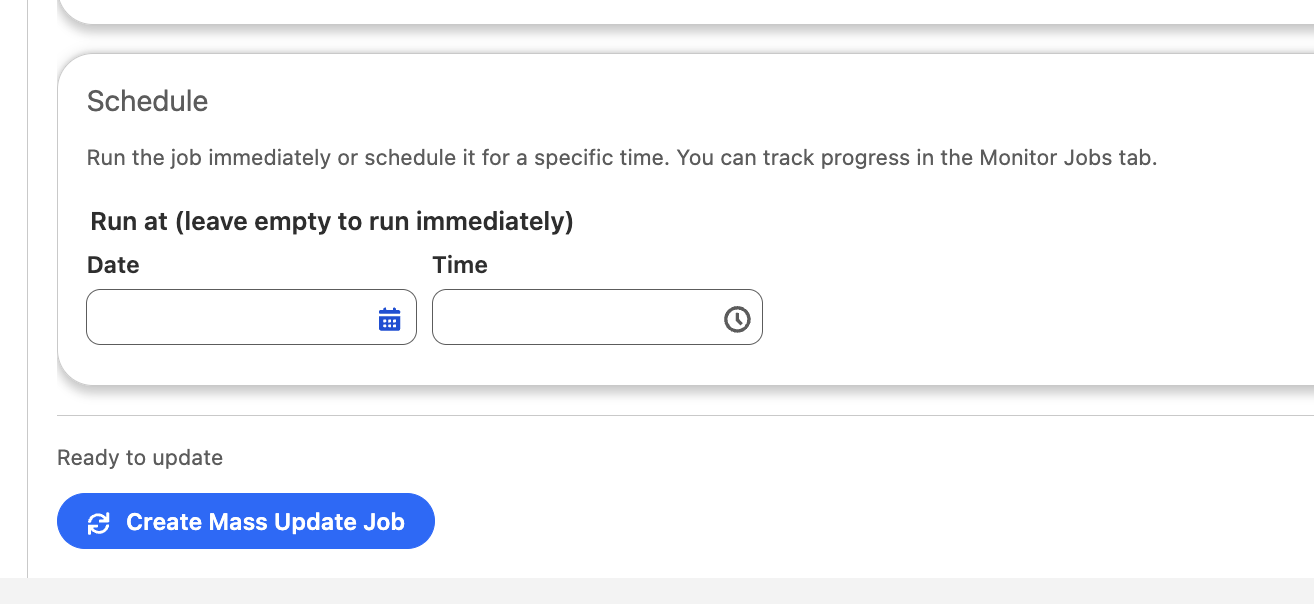
Click Create Mass Update Job to confirm. The system will take you straight to the Monitor Jobs tab.
📊 Monitoring your job
The Monitor Jobs tab updates automatically every 5 seconds. Active jobs appear at the top — completed and historical jobs appear below.
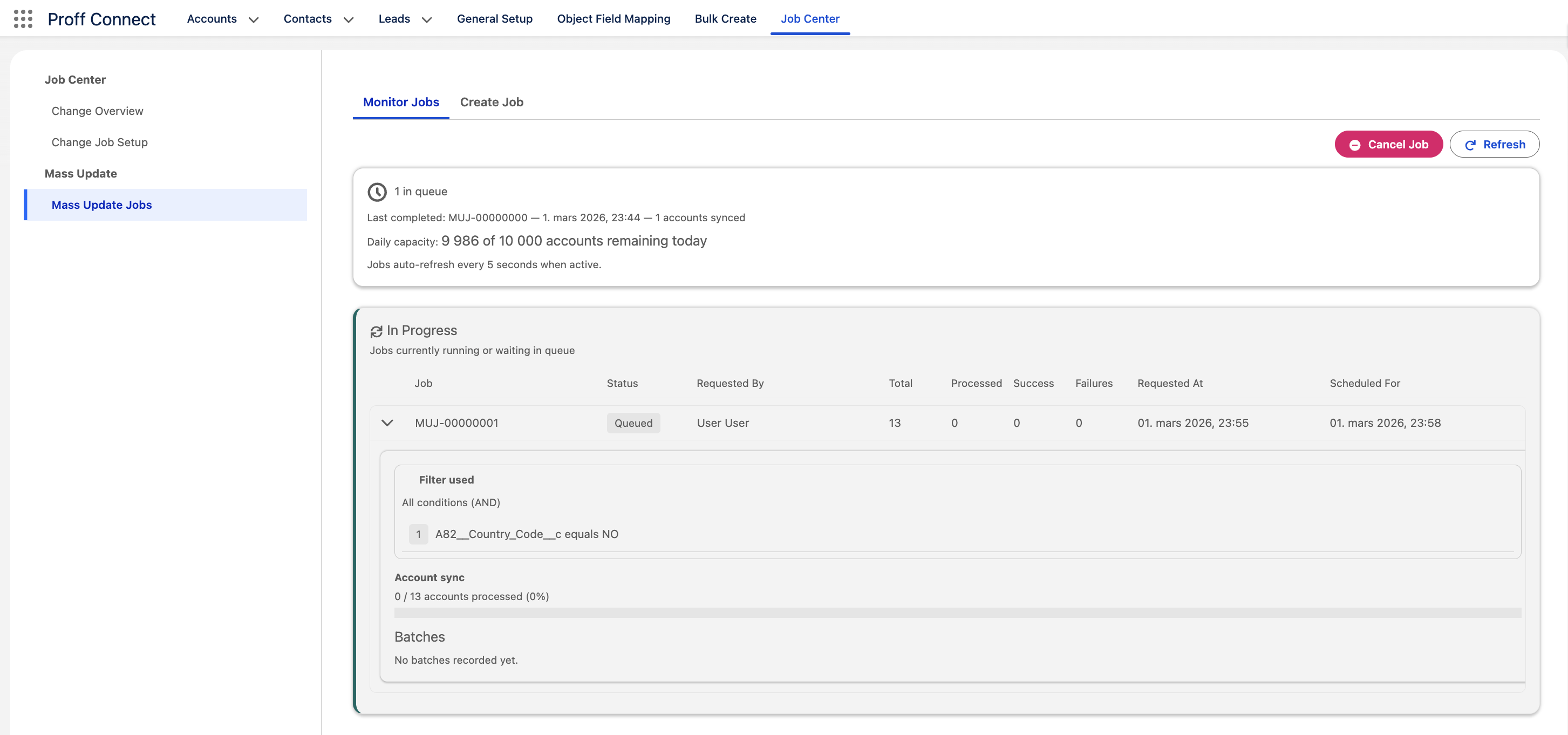
Click any job to expand it and see the individual batches it was split into. Click a batch to see the full list of synced and failed Accounts, each with a direct link to the Salesforce record.
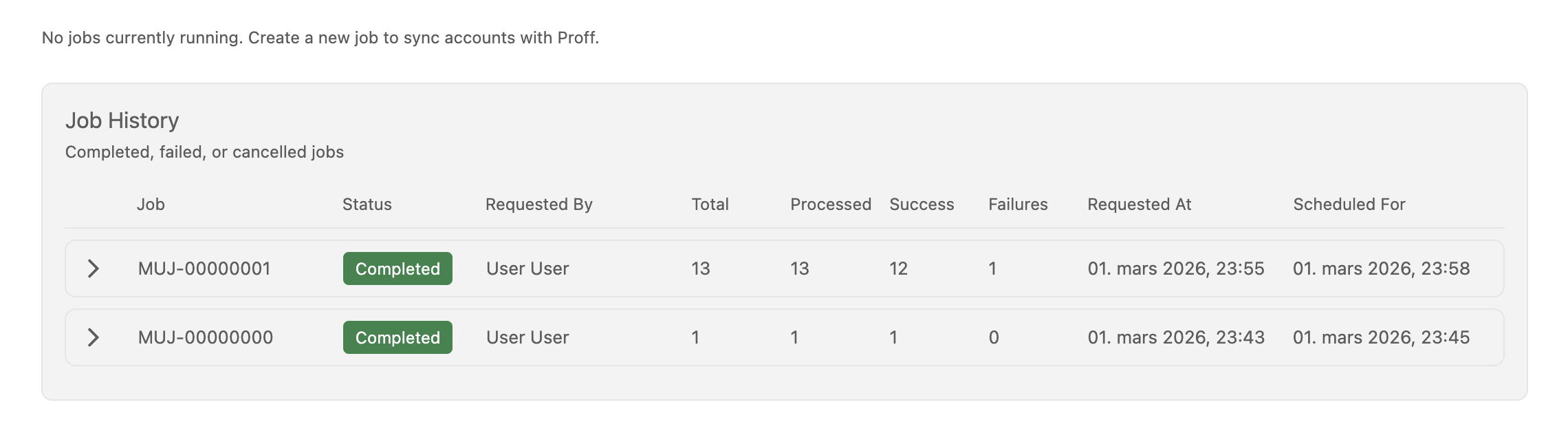
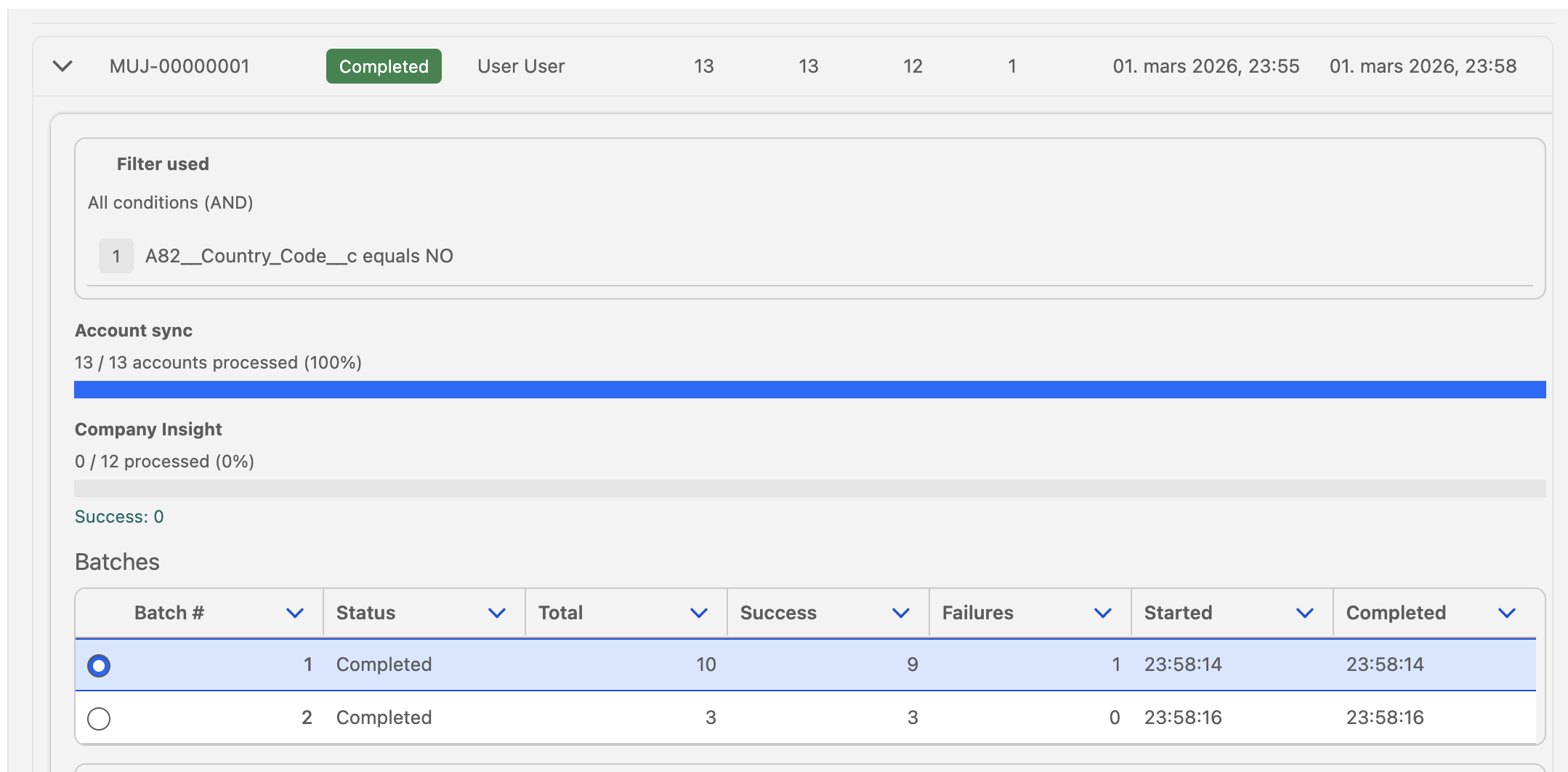
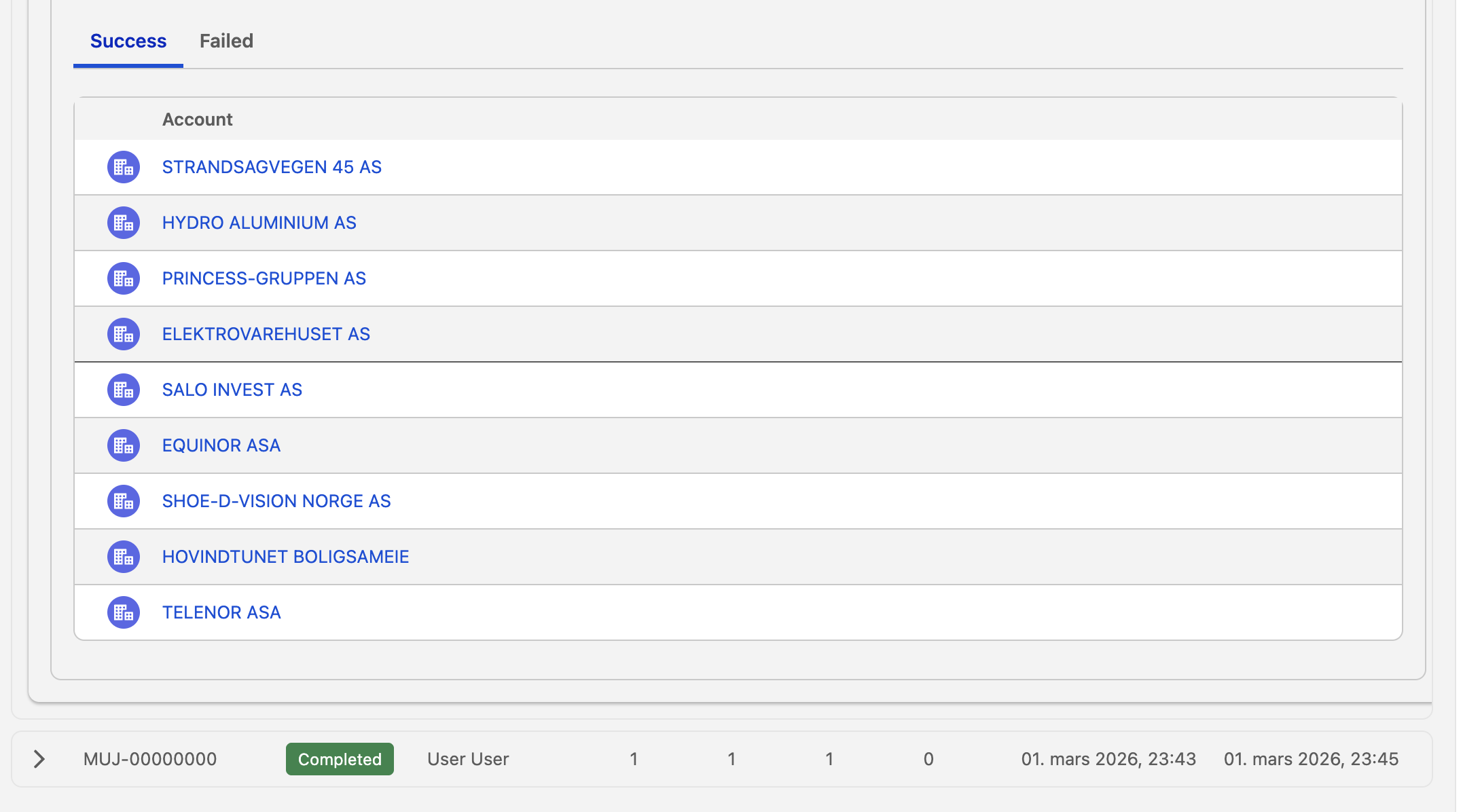
|
Status |
What it means |
|---|---|
|
QUEUED |
Waiting to start — either immediately or at the scheduled time |
|
RUNNING |
Accounts are actively being synced |
|
COMPLETED |
Finished. At least one Account synced. Always check the failure count — some may still have failed. |
|
FAILED |
Every Account in the job failed — nothing was synced. Check batch details for error reasons. |
|
CANCELLED |
Manually stopped. Batches already in progress were completed; remaining batches were not started. |
⚠️ When accounts fail
Individual accounts can fail without affecting the rest of the job. The reason is always recorded in the batch details.
|
Error |
Cause |
What to do |
|---|---|---|
|
MISSING FIELDS |
Missing Organisation Number or Country Code |
Add the missing data to the Account, then include it in a new job |
|
API ERROR |
Proff could not find the company, or the API timed out |
Check that the Organisation Number and Country Code are correct, then try again |
|
DML ERROR |
Salesforce rejected the save — usually a validation rule or required field |
Check validation rules on Account, resolve the issue, then try again |
|
LIMIT REACHED |
A system capacity limit was hit mid-batch before this Account could be processed |
Run a new job — the Account will be retried and should succeed |
💡 Limits to be aware of
|
Limit |
Value |
Notes |
|---|---|---|
|
API calls used per job |
1 per Account |
A job of 500 Accounts uses 500 API calls. Check your available Proff API quota before running large jobs. |
|
Max Accounts per job |
10,000 |
Job creation is blocked if your filter matches more. Refine the filter to reduce scope. |
|
Max Accounts per calendar day (org-wide) |
10,000 |
Shared across all admins. If capacity is used up, schedule the next job for the following day. |
|
Max filter conditions |
50 |
|
|
Jobs shown in history |
50 most recent |
Older jobs still exist in Salesforce but are not shown in the monitor. |
❓ Frequently asked questions
How many API calls does a job use?
One per Account. A job that syncs 2,000 Accounts will use exactly 2,000 Proff API calls. Always check your available quota before running a large job — the preview screen shows the exact Account count before you commit.
Should I run multiple jobs at the same time?
We recommend running one job at a time. All jobs share the same daily limit of 10,000 Accounts, and running multiple jobs in parallel provides no advantage — you can only sync each Account once regardless. If you need to sync more than 10,000 Accounts, split them across multiple days using the scheduling feature.
What happens to Accounts that are missing data?
Accounts missing an Organisation Number or Country Code are skipped automatically. They appear as incomplete in the preview so you can fix them before running the job. They do not consume any API calls.
Is Company Insight updated immediately?
No — Company Insight is processed in the background after each Account is synced. For large jobs this may take several minutes. Progress is visible in the Insight columns of the monitor.
Can I stop a job that is already running?
Yes — use the Cancel button in the monitor. Batches that have already started will finish; no new batches will be started. API calls already made are not refunded.
A job shows Completed but some Accounts failed — is that normal?
Yes. Completed just means at least one Account was synced. It is only Failed if every single Account failed. Always check the failure count in the batch details.
Which fields are updated on my Accounts?
This depends on your Object Field Mapping configuration. The Last Synced timestamp is always updated. See 4. Object Field Mapping for details.