
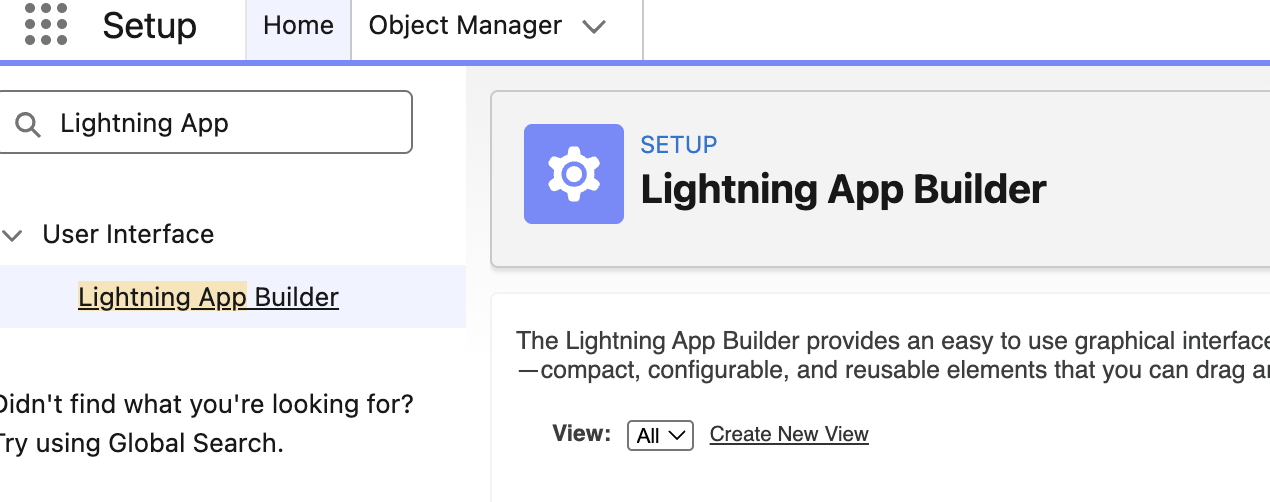
1. Navigate to Lightning App Builder
-
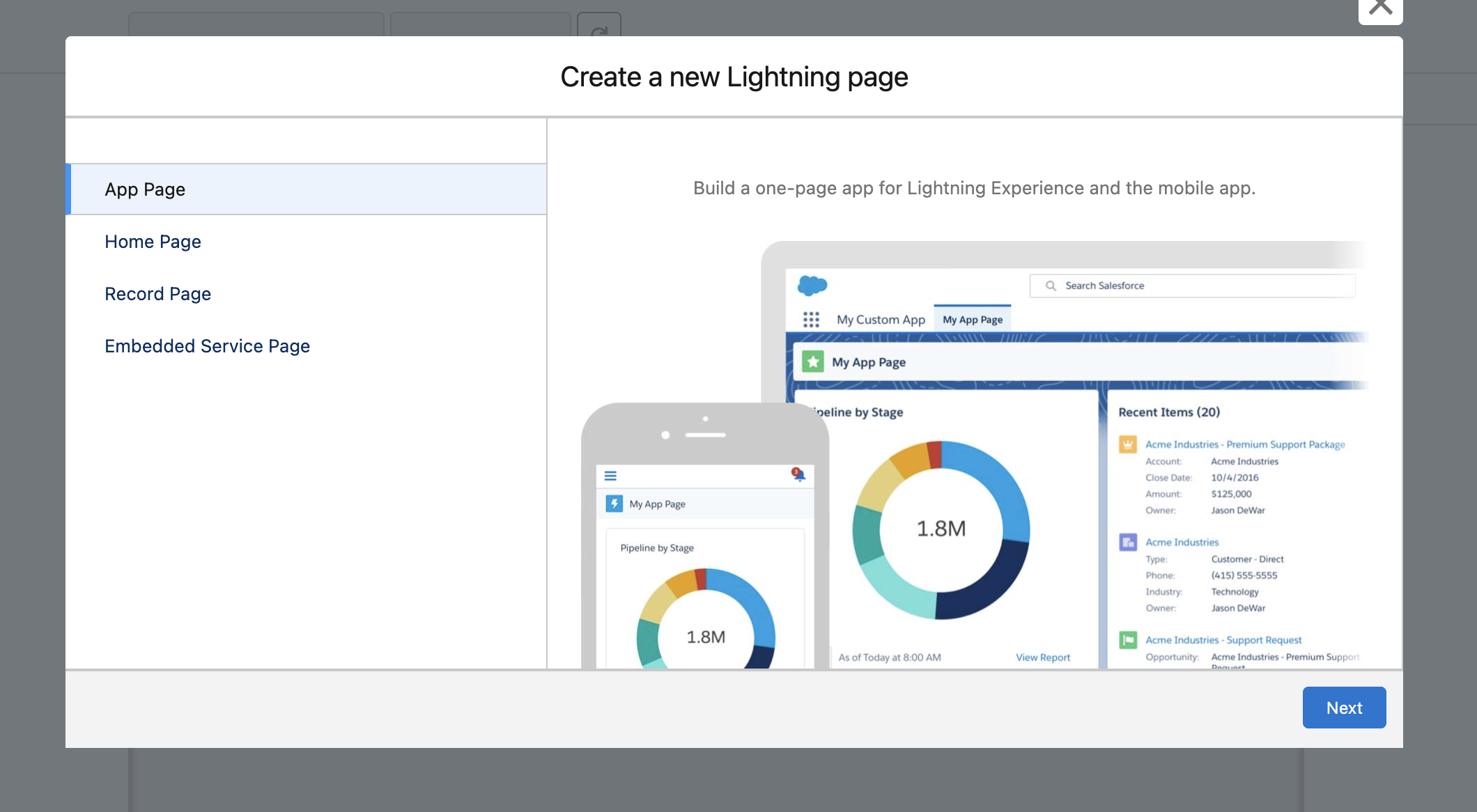
Click New and choose app page:
-
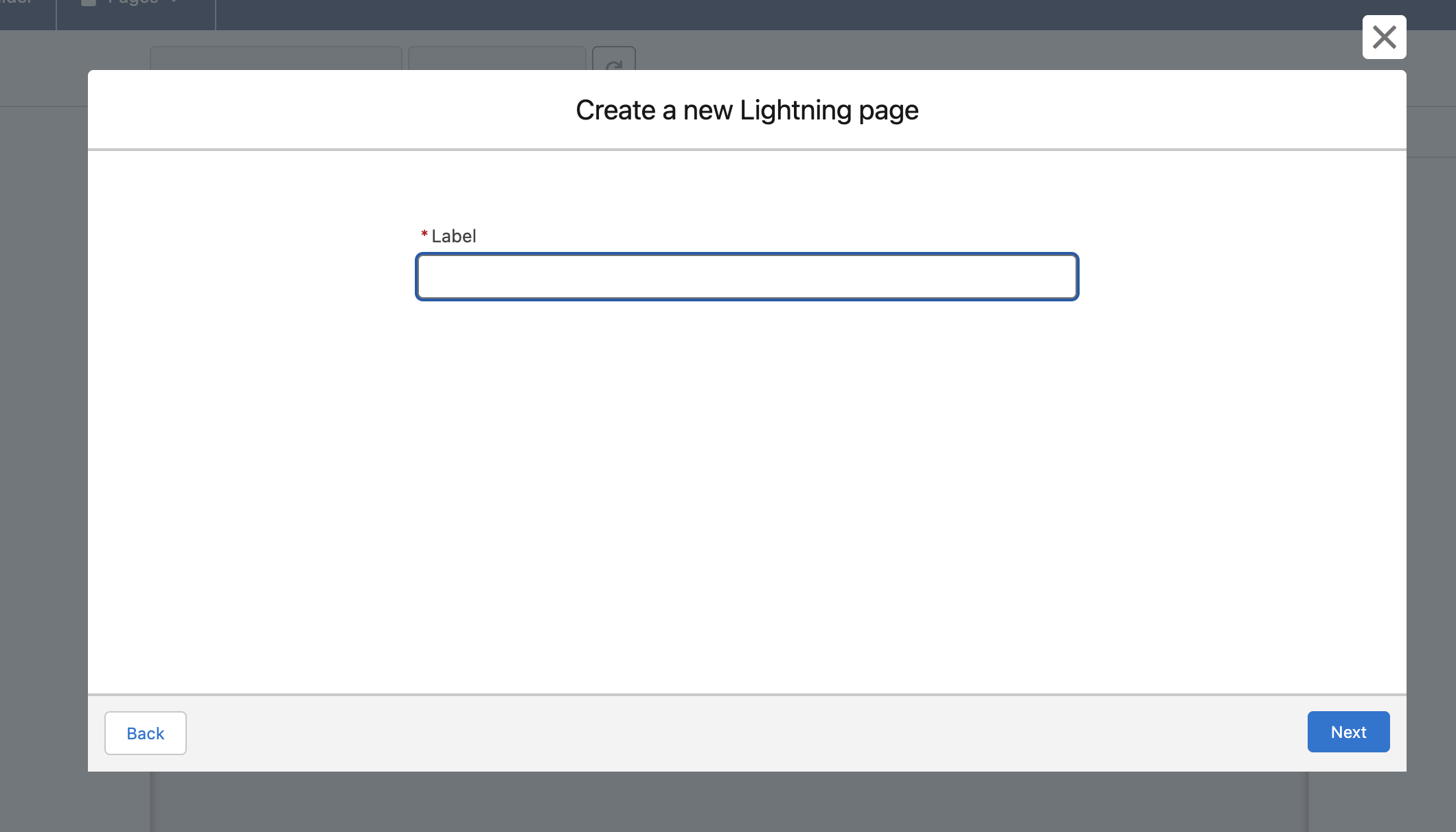
Give the page an appropriate name
Example: Company Search
-
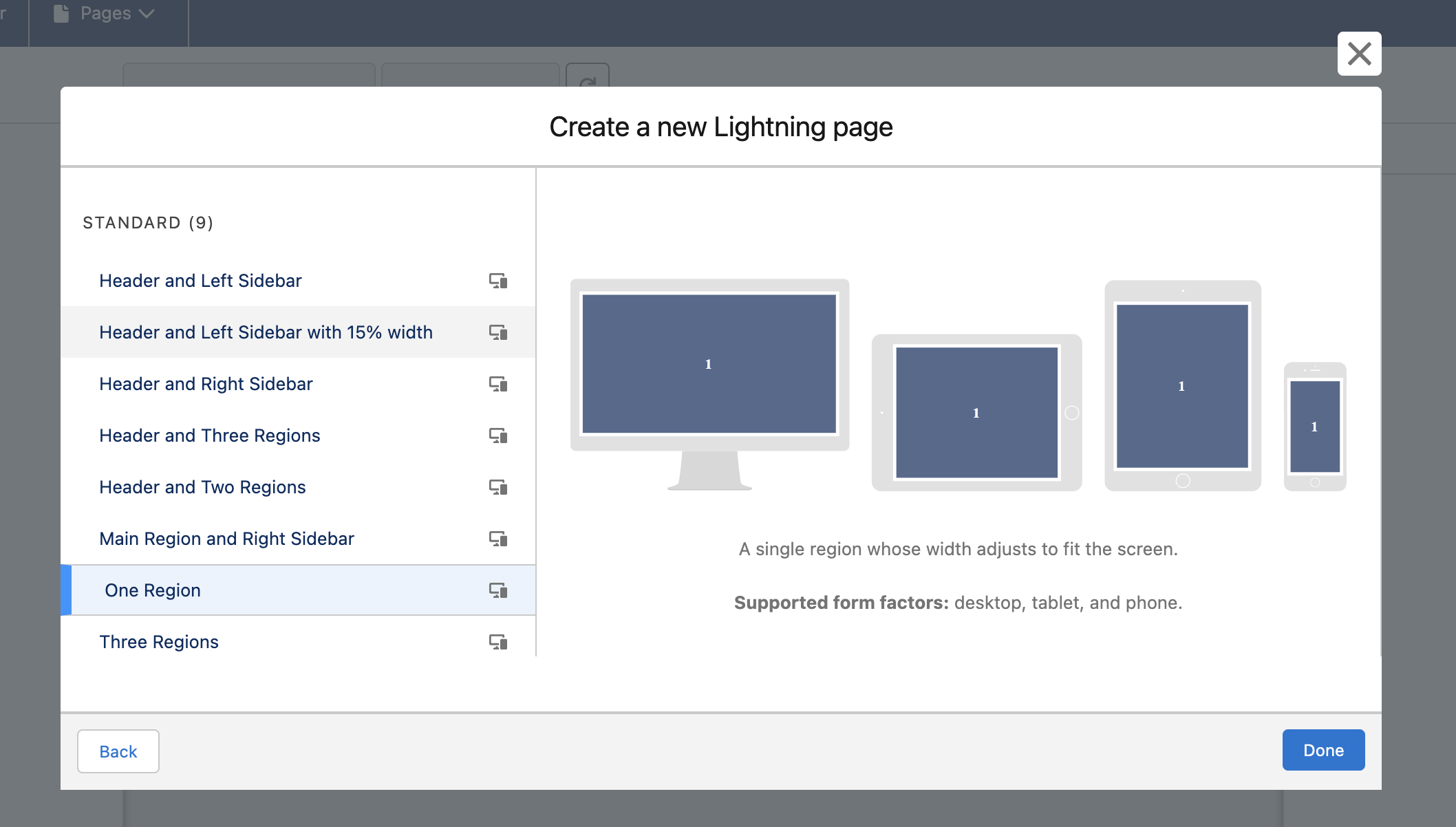
Choose “One Region”
-
And then add the CompanySearchLauncher LWC to the page layout.
Create a List View Button
To allow users to launch the Proff Search directly from an Account List View, you need to create a custom button.
-
Go to Setup and open Object Manager.
-
Select Account
-
Click Buttons, Links, and Actions on the left menu.
-
Click New Button or Link.
-
Configure the button as follows:
-
Label:
Company Search -
Name:
Company_Search -
Display Type: Select List Button.
-
Behavior: Select Display in existing window with sidebar.
-
Content Source: Select URL.
-
-
In the formula editor, enter the URL of the App Page you created in Step 1.
-
Example:
/lightning/n/Company_Search(ReplaceCompany_Searchwith the "API Name" of your page).
-
-
Click Save.
Step 3: Add the Button to the List View Layout
Creating the button isn't enough; you must also make it visible on the List View.
-
While still in the Object Manager for your object (e.g., Account), click on List View Button Layout.
-
Click the dropdown arrow next to List View and select Edit.
-
Under the Custom Buttons section, find your new
Company Searchbutton in the "Available Buttons" list. -
Click the Add arrow to move it to the "Selected Buttons" list.
-
Click Save.
Step 4: Verify the Setup
-
Navigate to the Accounts tab in your Salesforce app.
-
You should now see the Proff Search button in the top-right corner in the List View.
-
Clicking it will launch the Proff Company Search bar.